
Granola Integration
Connect Granola to Enterpret to analyze customer conversations alongside feedback from your other sources. Enterpret imports eligible Granola meetings as conversation records, using transcript text when available and the AI-generated summary when no usable transcript is returned.
Before you begin
You will need:
A Granola Business or Enterprise plan with API access.
A Granola API key with access to the meetings you want to import.
Permission to manage integrations in Enterpret.
The Granola folder IDs if you want to import meetings from specific folders.
Enterpret reads meeting data from Granola. It does not modify your Granola notes or create meetings.
1. Create a Granola API key
For a team integration, use a workspace API key so the connection does not depend on an individual account. A Granola workspace administrator can create one from Settings → Connectors → Workspace API keys by selecting Create new key. Copy the key for the Enterpret setup form.
Workspace keys can read public workspace notes and spaces granted API access. Ask your Granola administrator to enable API access for the spaces you want to import.
You can also use a personal key. In Granola, open Settings → Connectors → API keys, create a key, choose its note access scopes, and generate it. On Enterprise plans, an administrator may need to allow these scopes first.
See Granola’s API key setup guide for current instructions. Keep the key secure and enter it only in the integration form.
2. Choose which meetings to import
The API key’s permissions and your folder selection together determine which meetings Enterpret can import.
Leave Folder IDs empty: include all eligible meetings accessible to the key within your workspace’s configured import period.
Enter Folder IDs: limit imports to those folders and their subfolders. Separate multiple IDs with commas or new lines.
Use Granola’s API folder IDs, which start with fol_, rather than folder names or meeting links. Your administrator can find them through Granola’s List Folders API. Contact Enterpret Support if you need help identifying the right IDs.
A personal key’s Personal notes scope can include meetings owned by or shared with the key owner, including meetings in shared private folders. Its Public notes scope includes workspace-visible meetings. Review the key’s access scopes before connecting it; use folder IDs to narrow the import to relevant customer conversations.
3. Connect Granola in Enterpret
Open your Enterpret dashboard.
Open the account menu in the left sidebar and select Integrations.
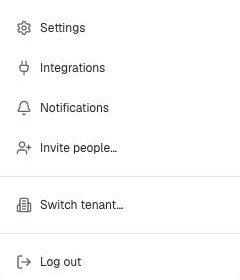
Open the account menu and select Integrations.
Click New Integration.

On the Integrations page, click New Integration.
Search for Granola and click Continue.
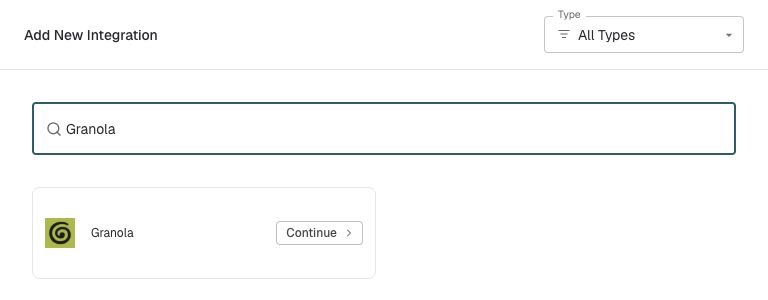
Search for Granola and click Continue.
Select Feedback Integration. If you have already filtered the list to Feedback integrations, click Connect on the Granola card instead.
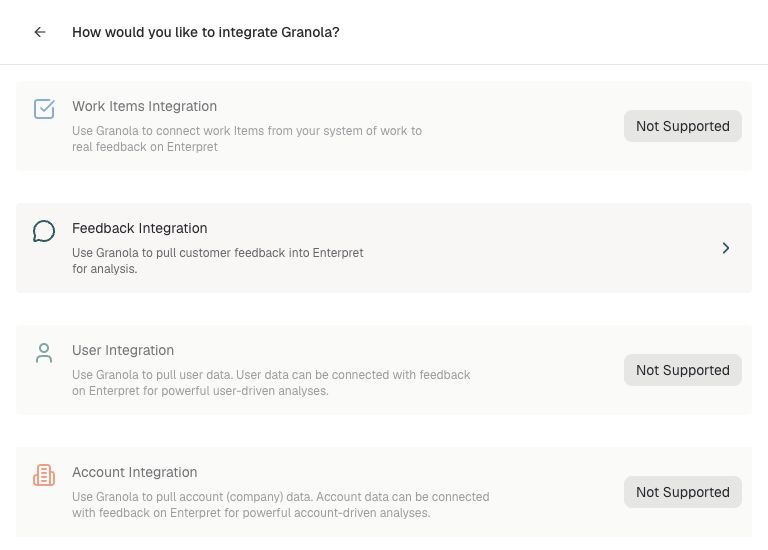
Choose Feedback Integration to import meeting feedback.
Complete the Granola - Feedback Integration form:
Granola API Key: paste the key you created.
Folder IDs (optional): enter the folder IDs you selected, or leave the field empty for all accessible meetings.
Describe the type of feedback being integrated: add a description of the conversations, who participates, and what you want to learn. This field is required and accepts up to 500 characters.
Click Integrate.
Example description: Customer interviews and success calls with customers and prospects. We want to identify product pain points, feature requests, and adoption barriers.
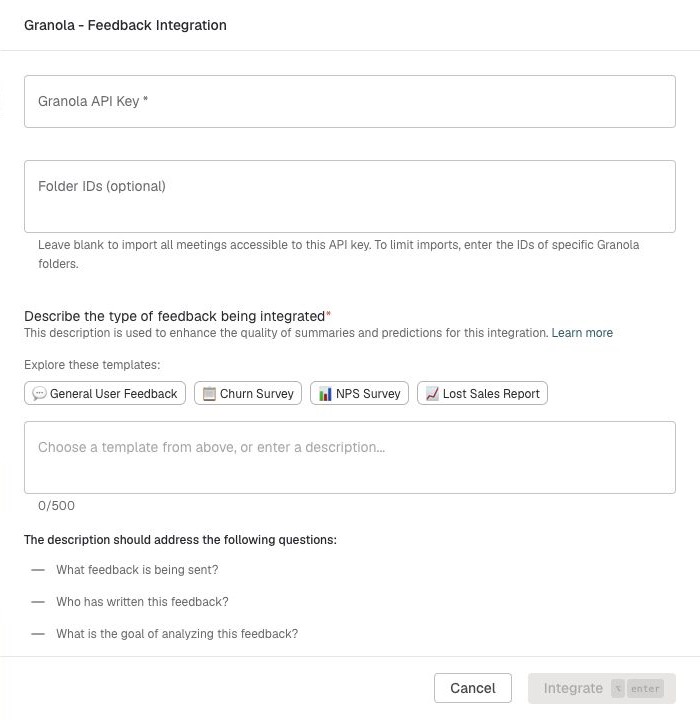
Complete the API key, optional folder IDs, and required feedback description, then click Integrate.
4. Confirm the connection
Open the Granola integration from the Integrations page to review its status and ingestion activity. Initial feedback may take up to 24 hours to become available for analysis. New meetings are imported periodically, after Granola has finished processing them.
After the first import, review a few Granola records to confirm that the meeting content, original links, and folder scope match what you intended to import.
The historical import period follows your Enterpret workspace’s configuration. Contact Enterpret Support if you need older meetings imported.
What gets synced
Each eligible meeting becomes a conversation record in Enterpret. Records include:
Transcript text, or the AI-generated summary when no usable transcript is returned.
Meeting title and timestamp.
The original Granola note link, when available.
Available metadata such as Owner, Folders, and MeetingType.
MeetingType is External when participant or calendar invitee emails include someone outside your organization’s domains, Internal when all available emails belong to your organization, and Unknown when neither participants nor calendar invitees have available email addresses. Internal meetings are included unless you restrict the folder scope or configure an ingestion filter.
Speaker attribution depends on the names and participant information Granola provides. Some speakers may remain unidentified. In meetings captured only through the recorder’s microphone, multiple voices may be attributed to the recorder.
Granola’s separate private handwritten notes are not imported. A personal API key can still make a private meeting’s transcript or AI summary available to Enterpret.
Manage your Granola integration
Replace or rotate the API key
Create a replacement key in Granola with access to the same meetings and folders.
Open the Granola integration in Enterpret and select Reauthorize.
Paste the replacement key and click Reauthorize.
Confirm that ingestion succeeds before revoking the old key in Granola.
Reauthorization preserves your existing folder selection. To change the folder scope, contact Enterpret Support.
Updates to imported meetings
Edits or deletions in Granola do not automatically update or remove records already imported into Enterpret. Contact Enterpret Support if you need existing records refreshed or removed.
Troubleshooting
Granola is missing from the integrations list
Check that you have permission to manage integrations. Contact your Customer Success Manager or Enterpret Support if Granola still does not appear; it may need to be enabled for your workspace.
The connection fails or shows an access error
Check that the API key is valid and has not been revoked. Confirm that it can access the selected folders and spaces. Restore the required access in Granola, or replace the key using Reauthorize.
Some meetings are missing
Check the API key’s note access scopes and any space-level API access settings.
Confirm that the meetings are in the selected folders or their subfolders.
Check that Granola has generated both the AI summary and transcript. Meetings still processing or never summarized are excluded from Granola’s API results.
Check that the meetings fall within the historical import period configured for your Enterpret workspace.
Allow time for the next scheduled import and analysis.
If meetings are still missing after the initial 24-hour processing window, contact Enterpret Support with the integration name, a sample Granola meeting link, and what you expected to import. Do not include your API key.
Internal meetings or the wrong conversations appear
An empty Folder IDs field includes every eligible meeting the key can access. Ask Enterpret Support to help narrow the folder scope or configure an ingestion filter using MeetingType. Changing the scope does not remove records already imported.