
HubSpot Deals Writeback
Send Enterpret deal summaries to a dedicated field on your existing HubSpot deals. Start with one or two approved test deals, confirm the result, and then expand the setup with your Enterpret representative.
Overview
HubSpot Deals writeback adds an Enterpret Deal Report to a configured HubSpot deal property. This lets sales, success, and product teams review customer context directly in HubSpot without switching tools.
Writeback is configured for your organization. Your Enterpret representative will confirm the destination property, eligible deals, update schedule, and rollout plan.
How this helps day to day
Give deal owners a concise summary of linked customer conversations.
Keep important deal context visible in HubSpot.
Help teams review customer needs, objections, competitors, and requested features from one place.
Keep the configured property updated when the Deal Report changes.
Before you begin
Identify the HubSpot account connected to the correct Enterpret workspace.
Ask a HubSpot administrator to create the destination property and authorize the connection if needed.
Choose one or two approved deals for testing.
Use a dedicated HubSpot property that people and other workflows do not edit.
Confirm that each test deal has linked feedback or conversations and a generated Deal Report in Enterpret.
1. Connect or confirm HubSpot Deals
In Enterpret, open Settings → Integrations.
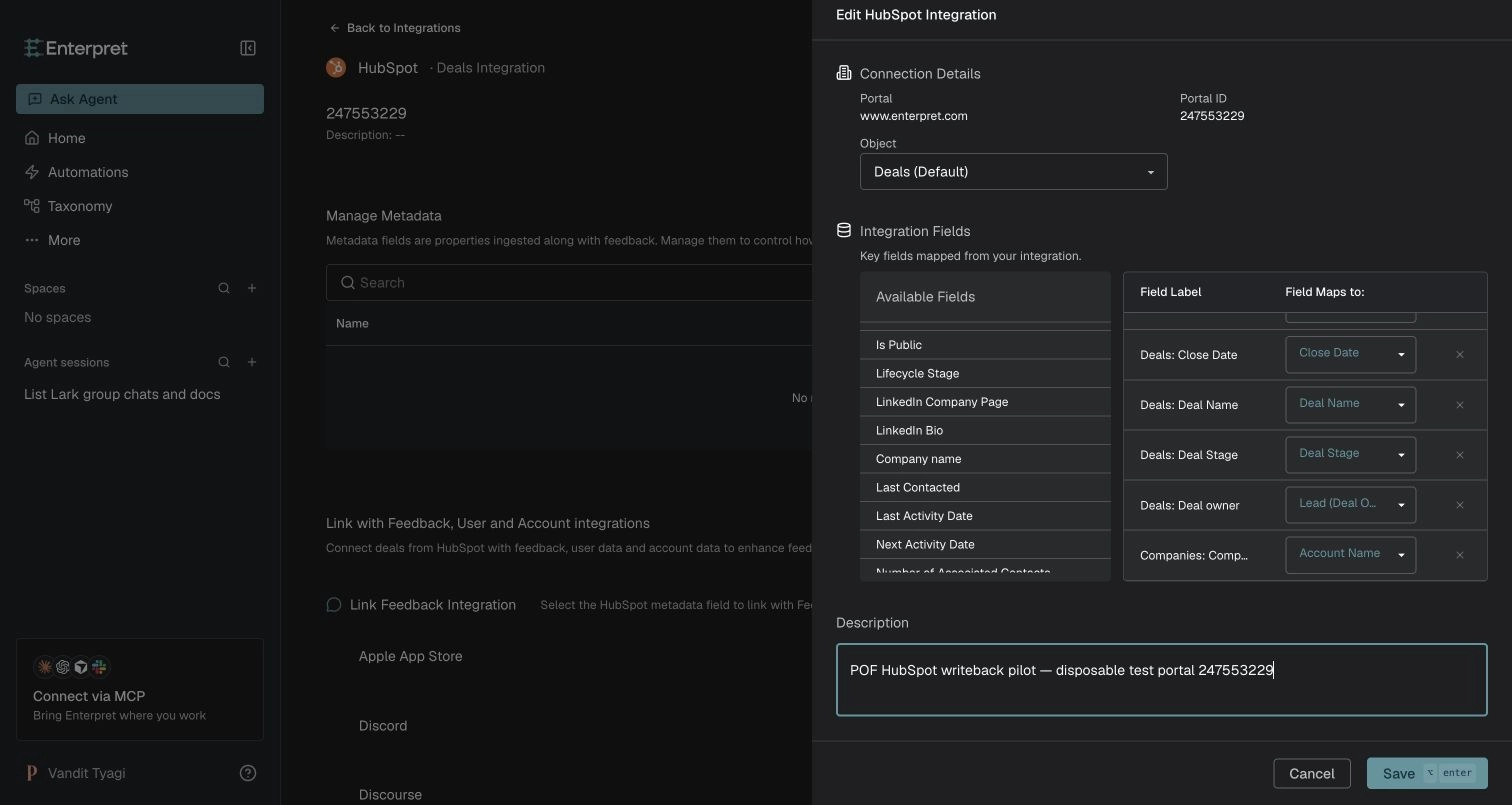
Find your existing HubSpot Deals connection and select Edit.
Confirm the HubSpot account, Portal ID, and Deals (Default) object.
Reuse the existing connection. If a HubSpot Deals connection is missing, select New Integration → HubSpot → Deals, choose the correct HubSpot account, and complete authorization.
Map the required deal fields
For a new HubSpot Deals connection, map these fields and then save the integration:
HubSpot field | Enterpret field |
|---|---|
Deal Name | Deal Name |
Deal Stage | Deal Stage |
Amount | Deal Amount |
Close Date | Close Date |
Deal owner | Lead (Deal Owner) |
Companies → Company name | Account Name |
2. Create the HubSpot destination property
Use a dedicated multi-line text property, such as Enterpret Sales Summary. If the property already exists, confirm its type and internal name.
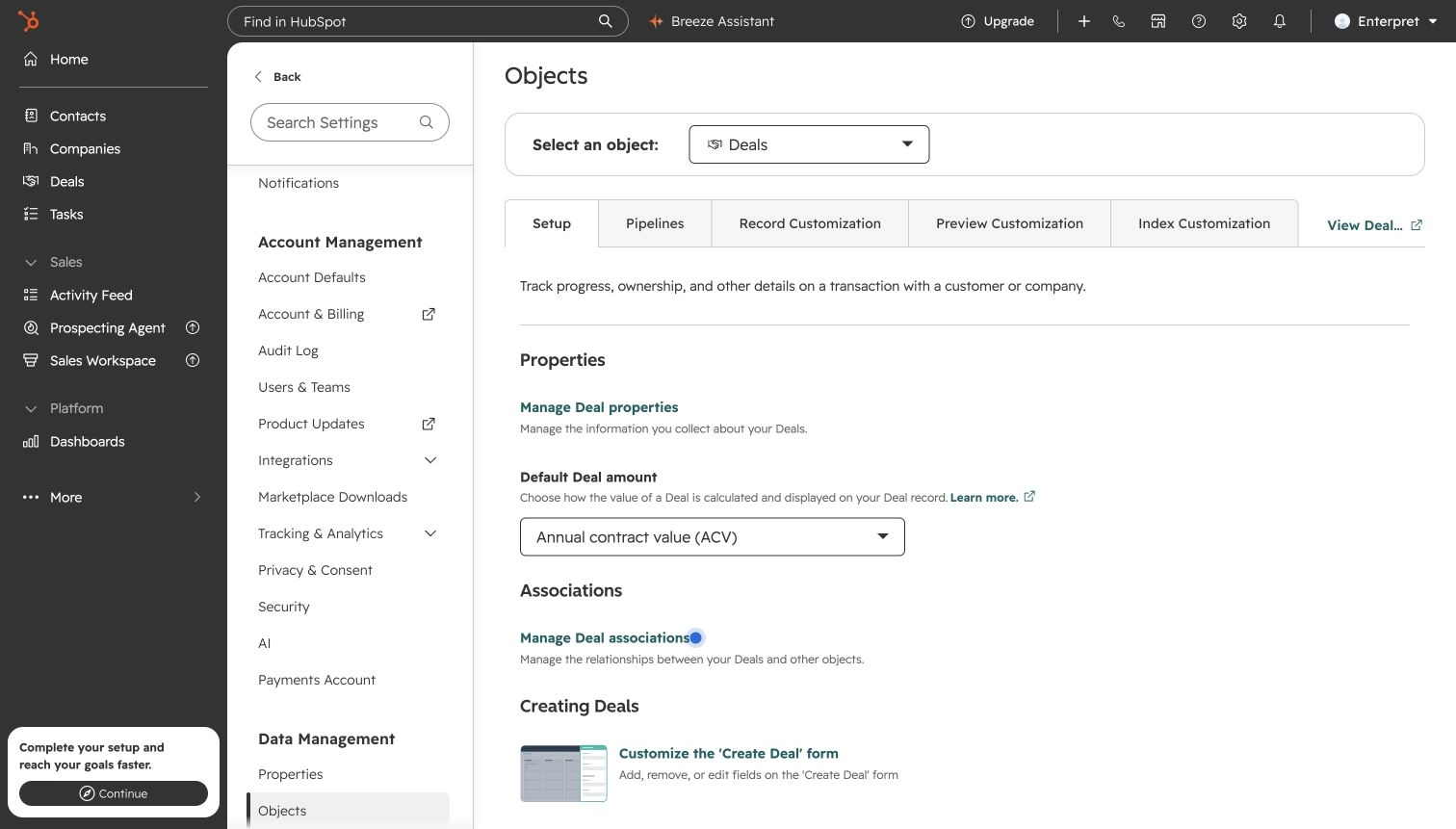
In HubSpot, open Settings → Data Management → Objects → Deals → Manage Deal properties.
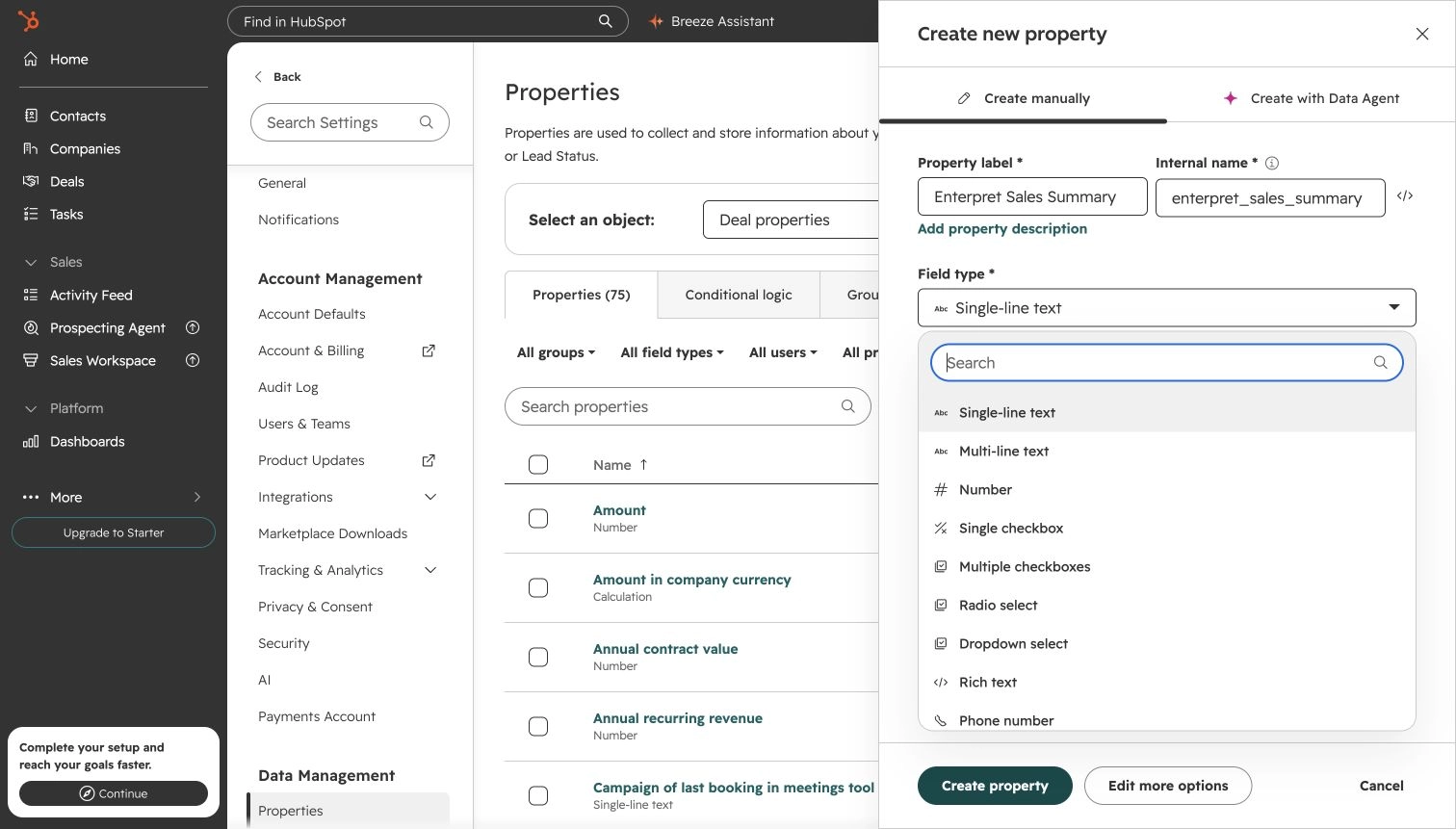
Select Create property.
Set the property label to Enterpret Sales Summary.
Set the internal name to
enterpret_sales_summary.Choose Multi-line text as the field type.
Leave Require unique values and Data Agent unchecked, then create the property.
Share the exact internal property name with your Enterpret representative. You can use a different label or internal name, but Enterpret must be configured with the final internal name.
3. Reauthorize the HubSpot Deals connection
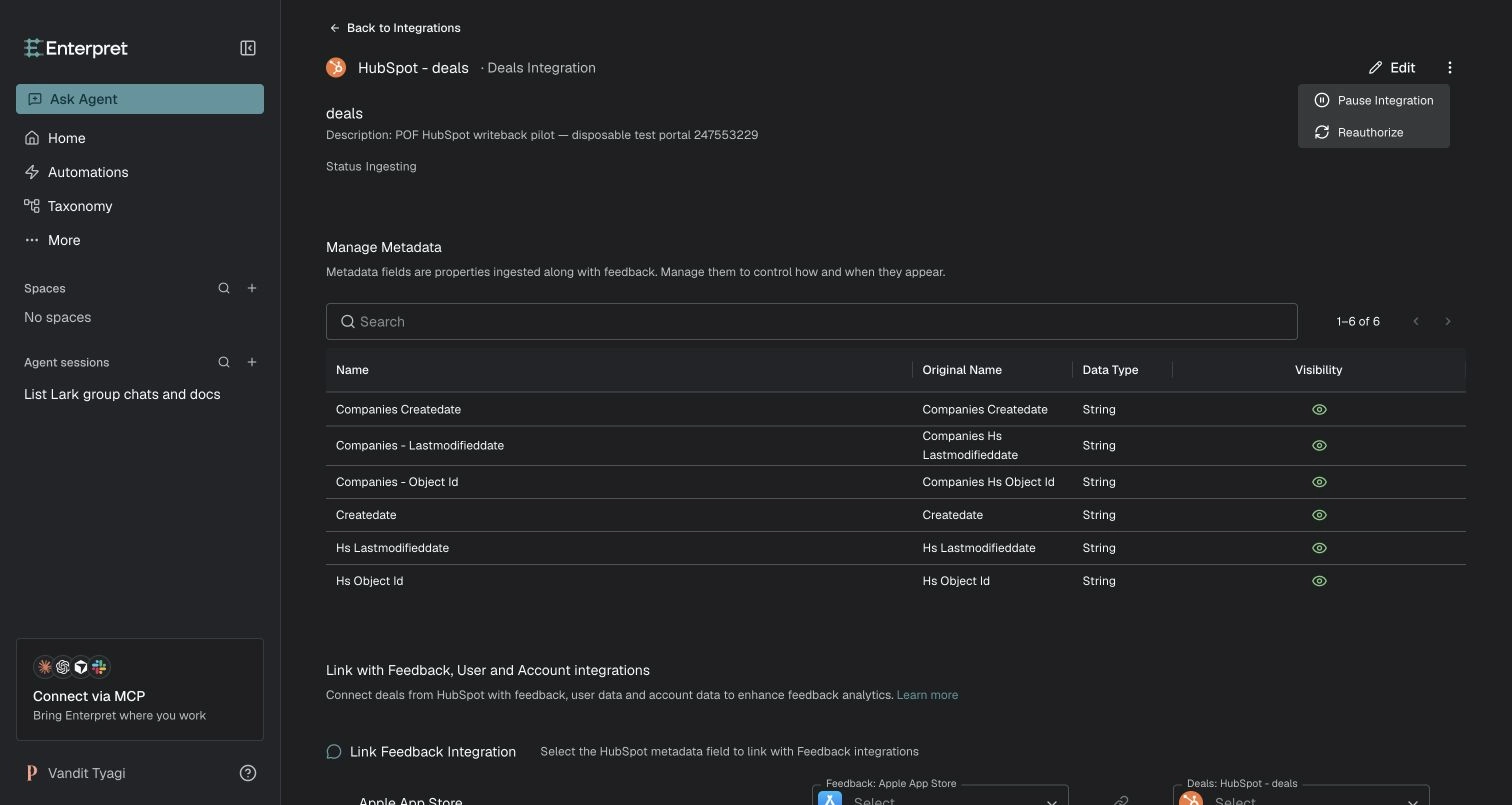
In Enterpret, open the existing HubSpot Deals integration.
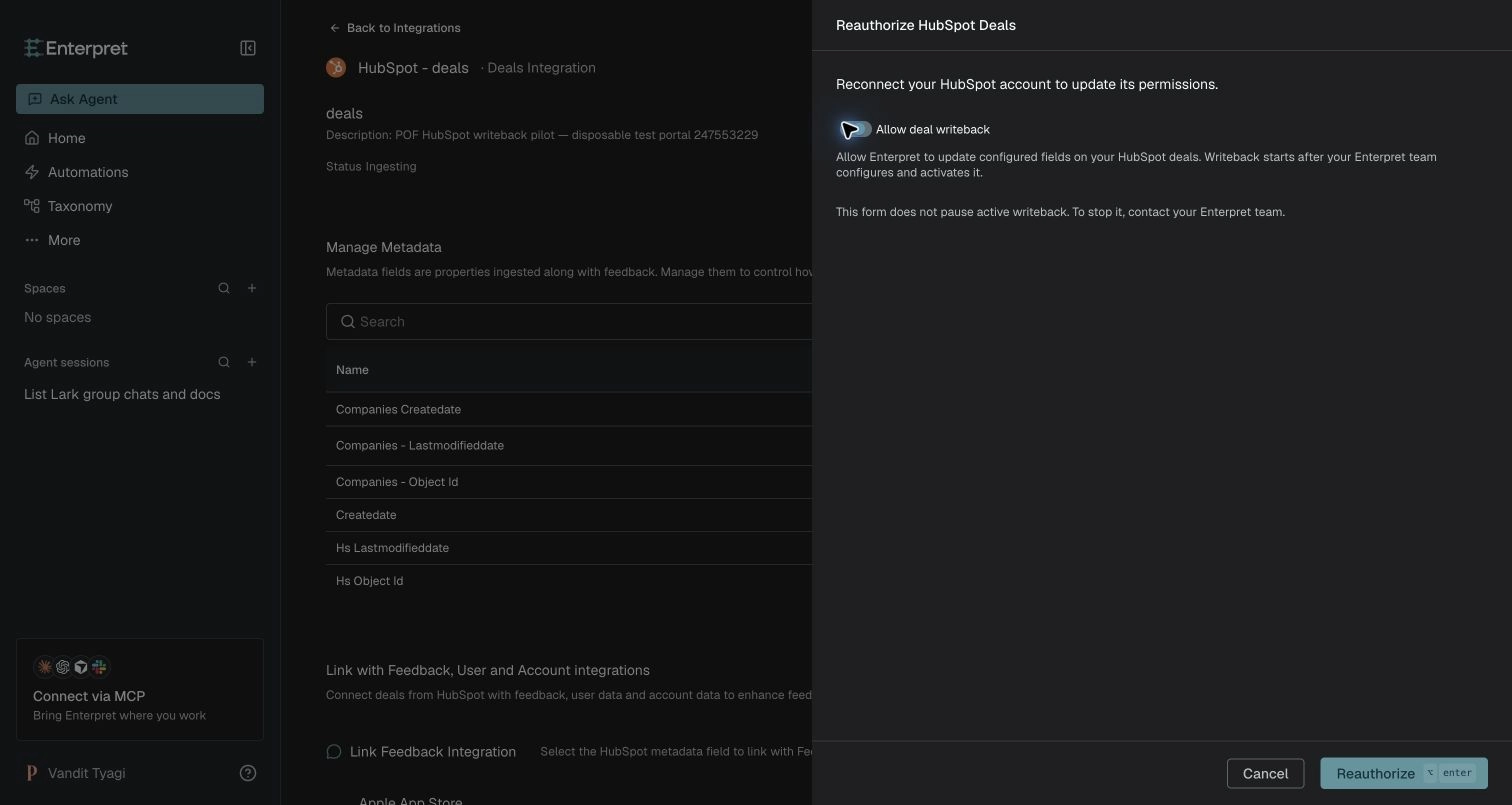
Open the three-dot menu beside Edit and select Reauthorize.
Turn on Allow deal writeback.
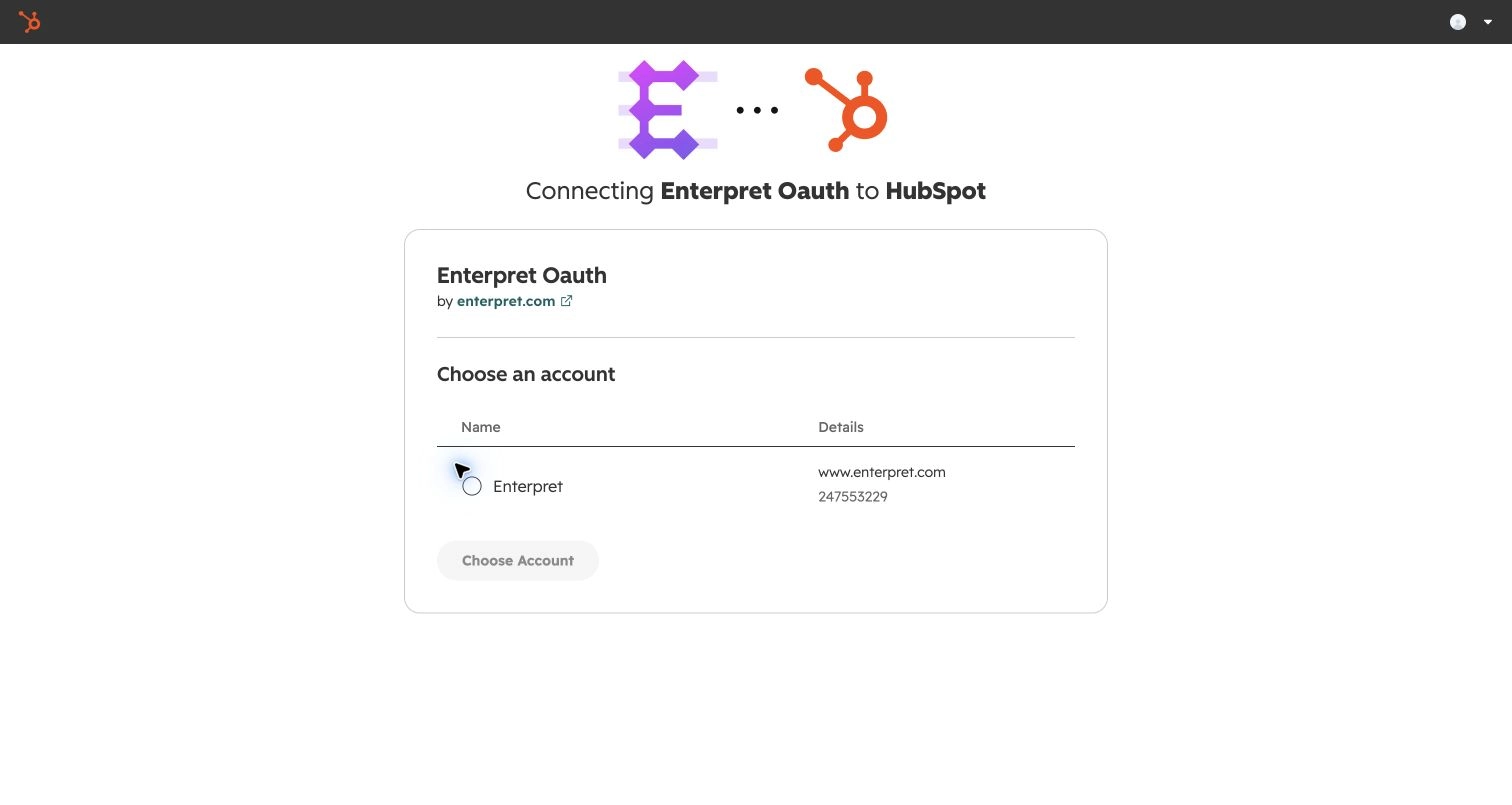
Select Reauthorize and choose the same HubSpot account.
Review the requested HubSpot permissions, select Connect app, and return to Enterpret.
Reauthorization grants the required permission. Your Enterpret representative activates the agreed writeback configuration separately. If the writeback option is unavailable, contact your Enterpret representative.
4. Confirm the writeback configuration
Send your Enterpret representative:
Your HubSpot account name and account ID
The destination property label and exact internal name
Links to one or two approved test deals
The update schedule you want to review
For example: Enterpret Deal Report → Enterpret Sales Summary (enterpret_sales_summary).
Writeback replaces the text in each mapped property. Use a dedicated property to avoid overwriting changes made by your team or another HubSpot workflow.
5. Validate the test deals
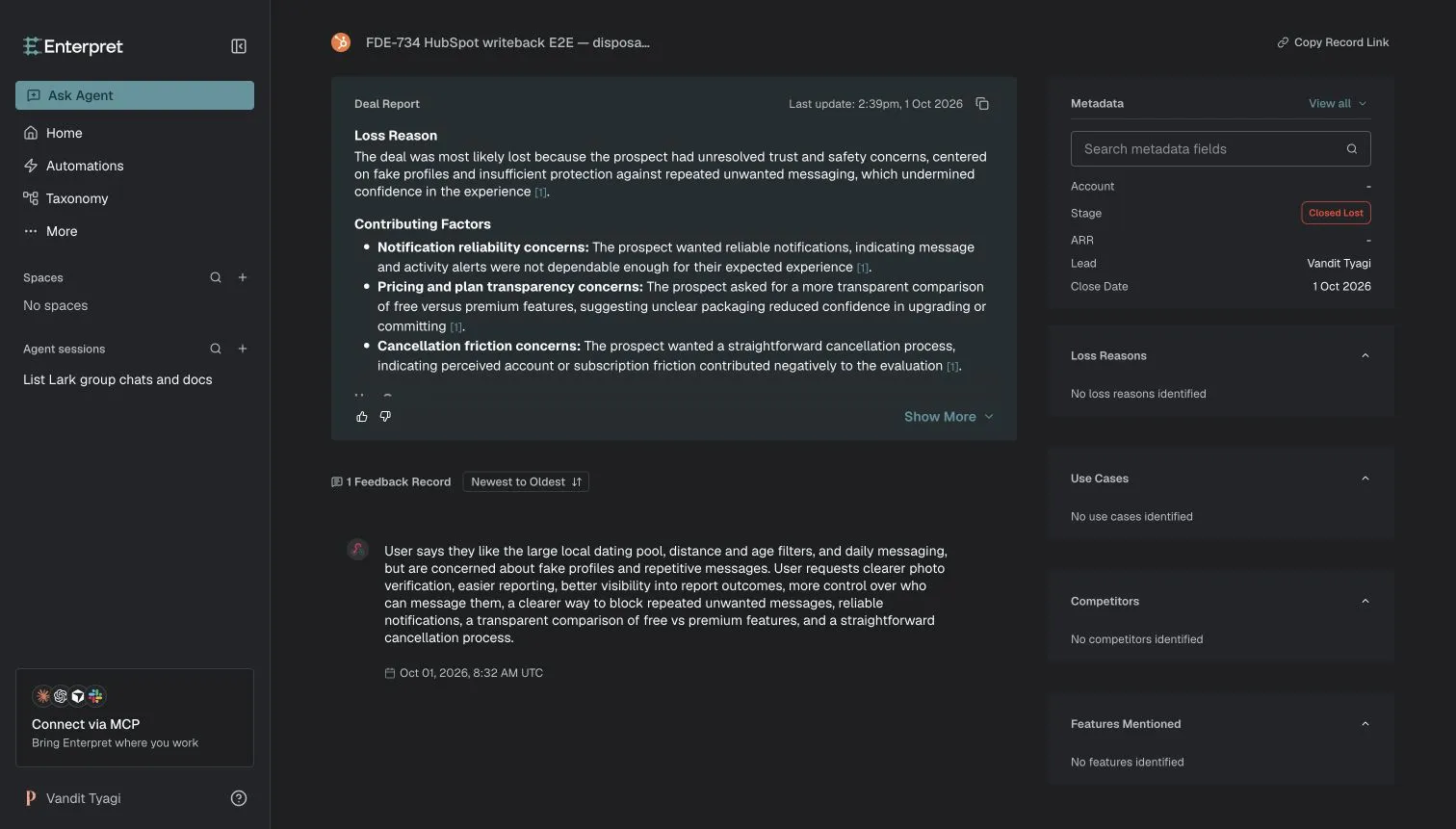
Confirm the source report in Enterpret
Open the test deal in Enterpret and confirm that it has linked feedback and a generated Deal Report.
View the saved summary in HubSpot
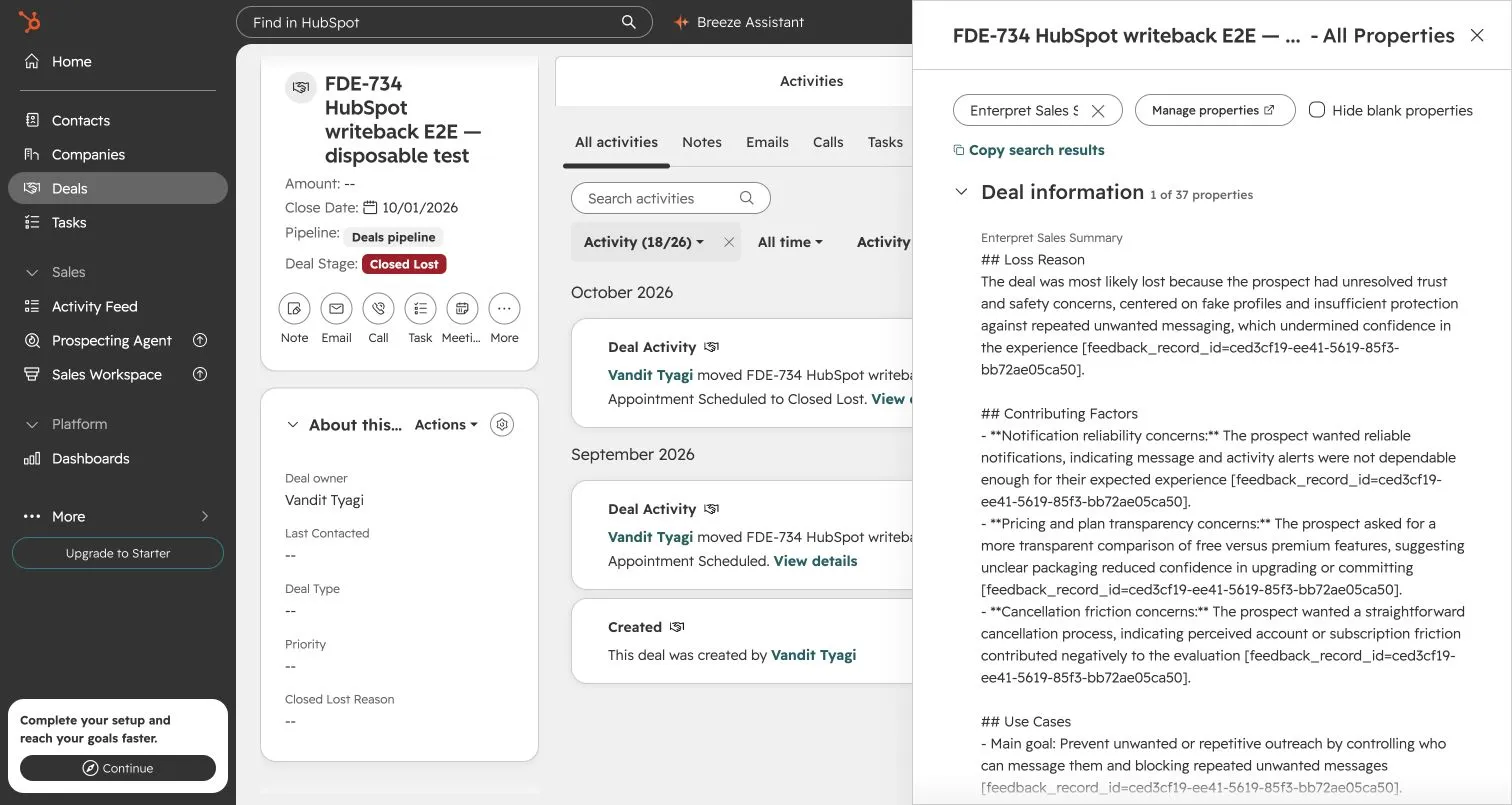
Open the same deal in HubSpot.
Open About this deal → Actions → View all properties.
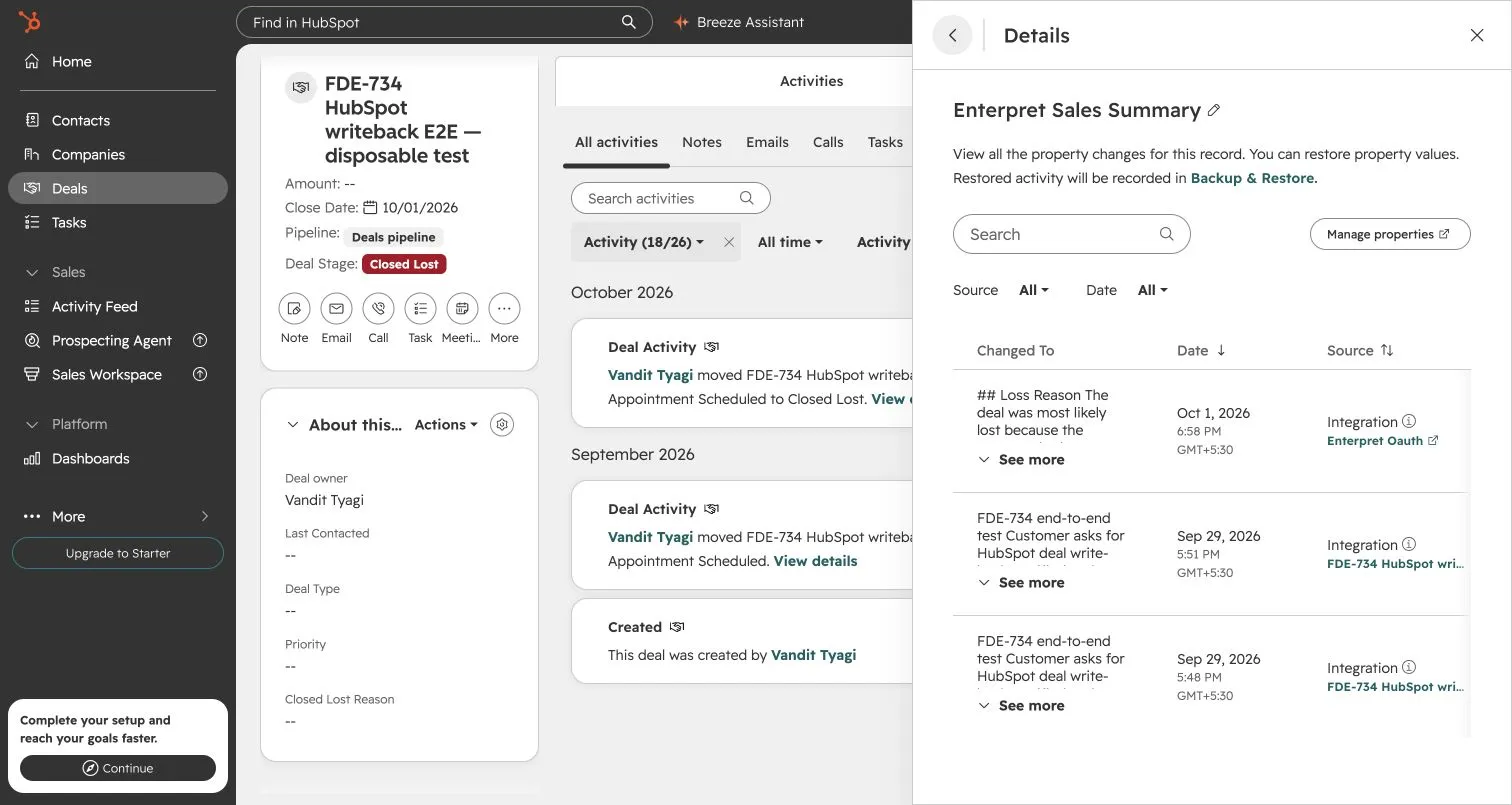
Search for Enterpret Sales Summary and select See more.
Compare the saved text with the Deal Report in Enterpret.
HubSpot stores the report as plain text in the multi-line property.
Check the property history
Beside the destination property, open View property history. Confirm the latest value, update time, and source.
6. Expand the rollout
After validating the test deals:
Confirm that the summary appears on the correct deals and only in the agreed property.
Confirm that the intended HubSpot users can view the property.
Review any HubSpot workflows triggered when the property changes.
Agree on the wider scope and schedule with your Enterpret representative.
7. Pause or change writeback
Contact your Enterpret representative to pause writeback or change its fields, scope, or schedule. Turning off authorization does not pause an active writeback configuration. Pausing does not restore earlier property values, and an update already in progress may still finish.
Troubleshooting
The destination property is blank
Confirm that the deal has linked feedback or conversations.
Confirm that a Deal Report has been generated in Enterpret.
Check that the destination property's internal name matches the configured name.
Confirm that writeback permission was granted during reauthorization.
Allow time for the agreed update schedule.
Authorization fails
Share the visible error and your HubSpot account ID with your Enterpret representative. Do not share passwords, access tokens, or other credentials.
A HubSpot workflow runs after writeback
HubSpot treats writeback as a normal property update. Review workflows and other automations that use the destination property before expanding the rollout.